Uncategorized

Travel to the Mushroom Kingdom With This Toadette Cosplay

Hello Everyone I hope that you have enjoyed Mario Day this year and were able to take advantage of the great sales that Nintendo was having. I know I’m a couple of weeks late but I wanted to share with you this Toadette cosplay I made in January of this year. It was so much fun to make and it was a bit out of my comfort zone. For a while, I have really wanted to buy a hat that looked like a mushroom that was really popular last year or two years ago. Like with most things I was way behind the trend and by the time I knew about it, the fad had died down. My cottagecore vibes though could not stop thinking about making a mushroom hat so I decided to give it a try. What I love most about this project is I was able to use leftover packaging and things that were just going to be thrown away and given new life. Here is my Mario Day post featuring this super fun hat.

With this cosplay, I decided to challenge myself to make this as budget-friendly as I could. If you can believe it, I only spent about $20 on this one. The majority of it went into the wig. The pink dress under the vest was one that I already had in my closet and the vest fabric I found at Walmart for $3+ a yard and I reused some gold ribbon I already had. If you would like to see some of the process of making this costume please be sure to check out my Instagram.

Uncategorized

Cosplay In A Galaxy Far Far Away – Ahsoka Tano Cosplay

 Hello and thank you for joining me again for another cosplaying adventure. From the moment that the last Comic-Con was over, I knew the next one that I wanted to do. While I had originally planned to take it slow, I learned that once I get excited about something I can’t stop and even found another convention to attend exactly one month after the first one. Let me tell you this was a crazy month and I had a lot of moments of frustration and tears but I absolutely love how it turned out.

I started with the headpiece because I knew that was one of the most important parts of the whole costume. This was only the second cosplay I had ever made and NEVER have I used foam so this was going to be interesting. I was able to find this pattern on Etsy for the Lekku (Click Here to be taken to the pattern) I tried a variety of different adhesives on the 3mm in an attempt to find one that would actually work. In the end, I used Weldwood Rubber Cement. Something that I look is most important with this is to apply a THIN layer then you want to let it dry for a couple of minutes. It should not look wet. You can use a heat gun to bend the foam to get it to the shape that you need. A video tutorial on Youtube provided by the seller helps to show you how to put it together. Please note that it can only be printed on A4 paper so if you are in the US you’ll have to buy special paper.

After you finish putting it together, you need to seal it with your heat gun. This will close the particles and help to make sure it doesn’t melt or get deformed when painting. The foam will be shiny when it is properly sealed. Next, I highly recommend sealing it again, some recommend Plasti Dip though I used a spray rubber by Gorilla. Personally, I used the white color so that I could make sure that everything was covered and sealed properly. I let it cure for the full 24 hours before painting. For the paint, I used Plaid FX Flexible acrylic paint in a couple of different blue colors to add depth to the piece. 

For the armor, I purchased the pattern from the same seller HERE. It came with no instructions but was able to figure it out. Eventually. Please note that I am a size XL and the belt part I had to adjust because it was not long enough to go around. After everything was put together I sprayed it also with the spray rubbed and painted it. For the silver parts I was running out of time and opted to pair it with spray paint with a hammered metal texture. For everything except the belt, I added elastic straps. To keep it secured I sewed a piece of nylon webbing (or straping) and then hot glued it to the back of the piece. For the belt, I hot-glued the buckle to one of the sides and then put velcro to hold the other end of the buckle to the other end of the belt. However, I was worried it would randomly fall off so I bought some parachute clips from amazon and attached elastic to each one, and put it on the inside of the belt so that it would have doubt security but still stay hidden.

Last but not least is the dress. I purchased this pattern from Etsy HERE. Admittedly at first I was worried because there are no sewing instructions what’s so ever. However, it is a pretty easy sew. I started with the shoulder seams and then the side seams. I trimmed the extra from the seam allowance and clipped the curves in the side seams. Since I have a bigger chest, it didn’t fit quite right there so I added a couple of darts that fixed the problem. For the silver details, I traced the guides on my computer and had my Cricut cut everything out of silver HTV and then applied it with my Cricut Easy Press Mini.

I finished off the look with a $5 pair of navy blue leggings from Walmart and some tall boots that I used that I already had.

Dress fabric: Click Here
Silver HTV: Click Here
Navy Forearm Sleeves: Click Here

Now with the final reveal of the whole costume:

If you have any questions, please don’t hesitate to reach out. Until next time!

Uncategorized

Can I do it? Let's find out!

 Hello everyone! Thank you for joining me today. I’m super excited to announce that I have decided to do an Arts and Crafts Festival. In a local town, they are having a market just for handmade goods. This is only the second one that they have ever had. I have never done a market like this and so I’m super excited to delve into the world of farmer’s markets and festivals like this with you. 

As you may have seen on my Instagram, I have already started making some products to sell. If you would like to stay up to date on the creation process of the pieces be sure to check out the highlight story on my Instagram page called craft festival.

For this first item, I wanted to make something that was eco-friendly and could make with things that I already had in my fabric collection. These make-up remover pads are a life saver. They have a fun cotton on the front with a flannel back that is super soft against the skin and gently exfoliates. So far the ones that I have planned are the seashells (pictured above), fall leaves with acorns, and a gamer fabric. These are so easy to make and they are amazing for extra fabric that is too small for another project. I do plan to make two sizes of these as these can be rather small to do the whole face but they are the perfect size for removing eye makeup. The best part is that you can put them in the washing machine and they are as good as new.
I want to hear from you! Have you ever gone to an Arts and Crafts Festival? Until next time, Stay Crafty!

Uncategorized

Ena from Monster Hunter Stories 2 — Cosplay

 Hello everyone! I’m so excited to share with you the first-ever cosplay that I made! I am still new to sewing (only being learning to make clothes for maybe 6 months or so) However, after over 2 years without a vacation due to COVID, we decided to do a mini weekend getaway and go to our first official comic con near us. We of course didn’t decide that we were going to do this until the last minute so I had to pull everything together in 5 days. It was a struggle for sure with trying to work and make this costume but it turned out so well that I have to share it with you. 

If you have not had to the chance to play Monster Hunters Stories 2: Wings of Ruin for the Nintendo Switch I highly recommend it. It has a great storyline and the action is not too intense. It’s an open-world adventure that is so relaxing as you can explore and the character customization is top notch. One of the characters that travel with you is Ena. 

So first off one of the most important things for this character is the jacket. This is ultimately what took the most time. I was able to find this pattern on Etsy and I highly recommend it. What I loved about the pattern is that it has not only the jacket pattern but also the dress, bracers, belt, and pauldrons. I also loved that the price was so reasonable. I also found the seller was extremely helpful and willing to answer all of my cosplay newbie questions. When it came to the fabric for the jacket I had a hard time trying to figure out what to use. I get overheated very easily and was worried that in a busy convention center this was going to be an issue, especially since it had a lining. I finally decided on this linen blend on Amazon and purchased the green color. (For fabric listing click here) For the inside lining, I just went to my local JoAnn Fabrics and bought a basic white cotton fabric. 

For the dress I didn’t have enough time to actually sew it so I went to Walmart and purchased a short-sleeved shirt that was 4 sizes bigger so that it would have the right length. I cut out the details for the dress and hood of the jacket with the included SVG files on my Cricut and then ironed them on.

For the belt, bracers, and pauldrons I used a microsuede fabric in Chocolate on Amazon (you can find it here) For the scales on the pauldrons I purchased some silver rolls of faux leather from Hobby Lobby and had my Cricut cut that out as well so that they would be even and then hot glued them on. 

The accessories were what really finished it off. In the listing for the pattern, they recommended someone who had the 3D print files for all the accessories. Needless to say, I purchased those and 3D printed them and hot glued them on or hot glued to a broach pin to easily take it on and off. (Click Here for the link to the 3D print files.) 

I finished off the outfit with a pair of shorts and a pair of tall boots that I already had as well. 

Wig: Click Here
Ears: Click Here

Now I present you with the finished cosplay:

Uncategorized

Baby Yoda Eye Glasses Holder


May the fourth be with you! Hello everyone and Happy Star Wars day! I hope that you have been celebrating and living it up today. I wanted to post this special crochet tutorial just for you guys today. I don’t know about but in the morning when I still have my eyes half-closed, I’m always knocking my glasses off of the nightstand. To fix that problem and with Star Wars day in mind, I created this Baby Yoda (Grogu) glasses holder!

Unfortunately, all of the technology in my life decided that it wasn’t going to cooperate with me but I hope you will bear with me and all of the craziness. I have lots of fun tutorials coming up so be sure to subscribe to be up to date with the new content. You can find the written pattern below:

Head:
Magic Ring, ch1 and make 12 sc in ring, join to first sc, ch1
Round 2: 2 sc in first, sc in next, repeat around, join, ch1
Round 3: 2 sc in first, sc in next 2 stitches, repeat around, join, ch1
Round 4: 2 sc in first, sc in next 3 stitches, repeat around, join, ch1
Round 5: 2 sc in first, sc in next 4 stitches, repeat around, join, ch1
Round 6: 2 sc in first, sc in next 5 stitches, repeat around, join, ch1
Round 7: 2 sc in first, sc in next 6 stitches, repeat around, join, ch1
Round 8: 2 sc in first, sc in next 7 stitches, repeat around, join, ch1
Round 9: 2 sc in first, sc in next 8 stitches, repeat around, join, ch1
Round 10: 2 sc in first, sc in next 9 
stitches, repeat around, join, ch1 (66)
Round 11-21: sc in each stitch around, repeat around, join, ch1
Round 22: sc decrease in first, sc in next 9 stitches, repeat around, join, ch1
Round 23: sc in each stitch around, join, ch1
Round 24: sc decrease in first, sc in next 8 stitches, repeat around, join, ch1
Round 25: sc in each stitch around, join, ch1
Round 26: sc decrease in first, sc in next 7 stitches, repeat around, join, ch1
Round 27: sc in each stitch around, join, ch1
Round 28: sc decrease in first, sc in next 6 stitches, repeat around, join, ch1
Round 29: sc in each stitch around, join, ch1
Round 30: sc decrease in first, sc in next 5 stitches, repeat around, join, ch1
Round 31: sc in each stitch around, join, ch1
Round 32: sc decrease in first, sc in next 4 stitches, repeat around, join, ch1
Insert eyes at row 20 from the top 10 stitches between each. Start to fill
Round 33: sc in each stitch around, join, ch1
Round 34: sc decrease in first, sc in next 3 stitches, repeat around, join, ch1
Round 35: sc in each stitch around, join, ch1
Round 36: sc decrease in first, sc in next 2 stitches, repeat around, join, ch1
Round 37: sc in each stitch around, join, ch1
Round 38: sc decrease around, join, ch1

Ear (Outer Part – Green)
Slip knot, ch16
1) sc in 2nd chain and across
2) ch1 and each stitch across
3) ch1, 1 sc in each of the 13 st, 1 sc dec
4) ch1, 1 sc dec and 1 sc in each stitch across
5) ch1, 1 sc in each of the 11 st, 1 sc dec
6) ch1, 1 sc dec and 1 sc in each stitch across
DO NOT CUT OFF

Ear (Inner Part – Pink)
Slip knot, ch11
1) sc in 2nd chain and across
2) ch1 and each stitch across
3) ch1, 1 sc dec and 1 sc in each stitch across
4) ch1, 1 sc in each of the 7 st, 1 sc dec
5) ch1, 1 sc dec and 1 sc in each stitch across
6) ch1, 1 sc in each of the 5 st, 1 sc dec
ch1, 1 sc in each stitch, 3 sc in each corner

Nose:
Magic Circle, ch1, 6sc in circle, join
1) ch1, 2sc in each stitch around, join
2) ch1, 2sc in first stitch, 1sc in next stitch, repeat around, join
3-4) ch1, 1sc in each stitch around, join
5) sc dec in the first two stitches, 1sc in the next stitch, join


You can also find the video tutorial here: https://youtu.be/EuiiaQngJ_c


Uncategorized

Custom Monogram Coasters – A Must Have!

Hello, my friends!

I hoped that you are all are fairing well with this COVID-19 pandemic. Finding myself at home all the time has been really hard. I’m used to always being on the go and I have never been good at sitting still. However, it has been let me do more creatively which I am always thankful for. That brings us to today’s post.

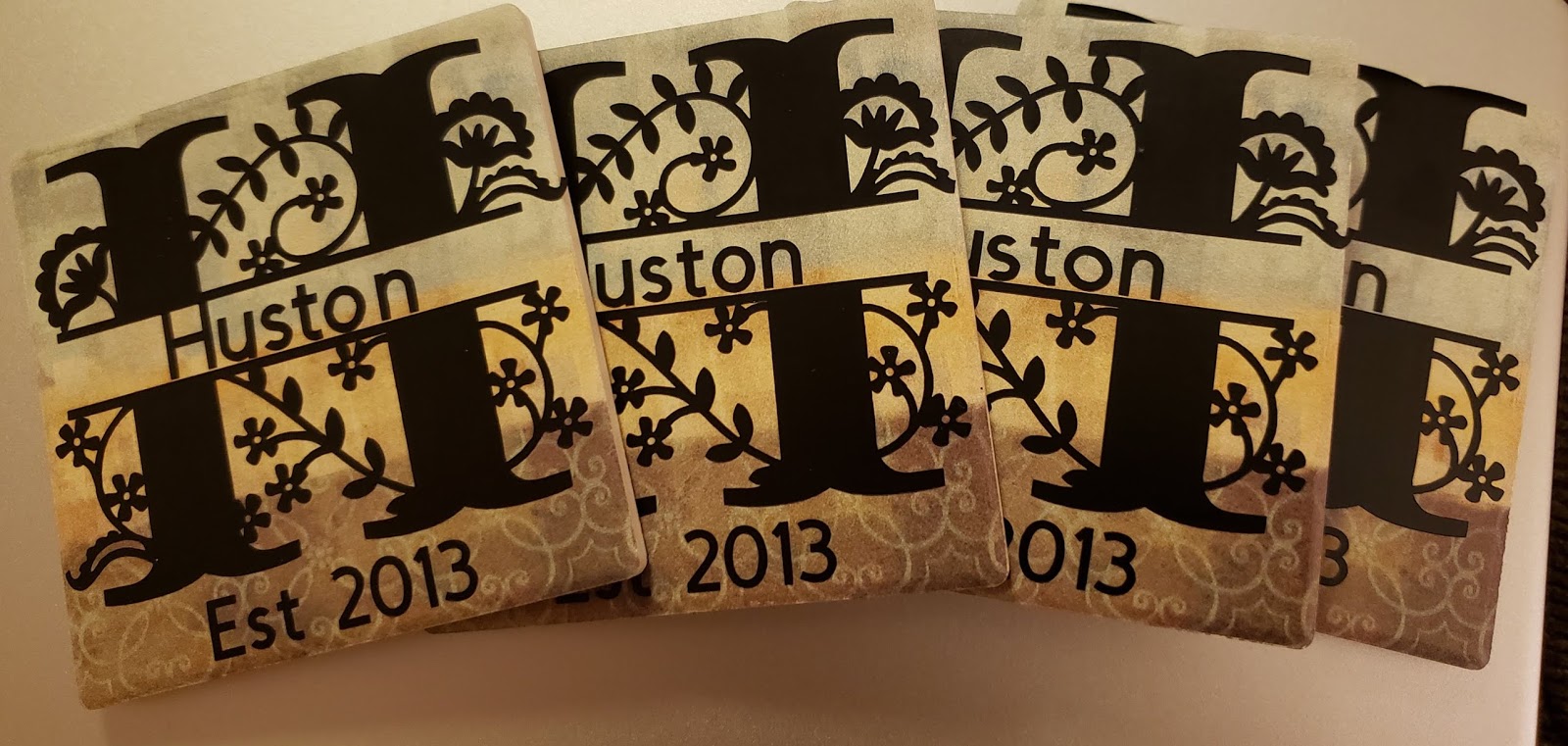
Today I am going to walk you through how you can make beautiful customized coasters for only about $6. Below is the set that I made.

So to make these you need some beauties you are going to need some things:

  • 4 Coasters (Or as many as you want)
  • Permanent Vinyl
  • Transfer Tape
Coasters: For coasters, there are many different types that you can get. The ones showed above I bought from Dollar Tree for $1 apiece. They are really nice because they have cork on the bottom so it will not scuff your table but the stone on top is absorbent. They also come in different designs which is super fun to play with.

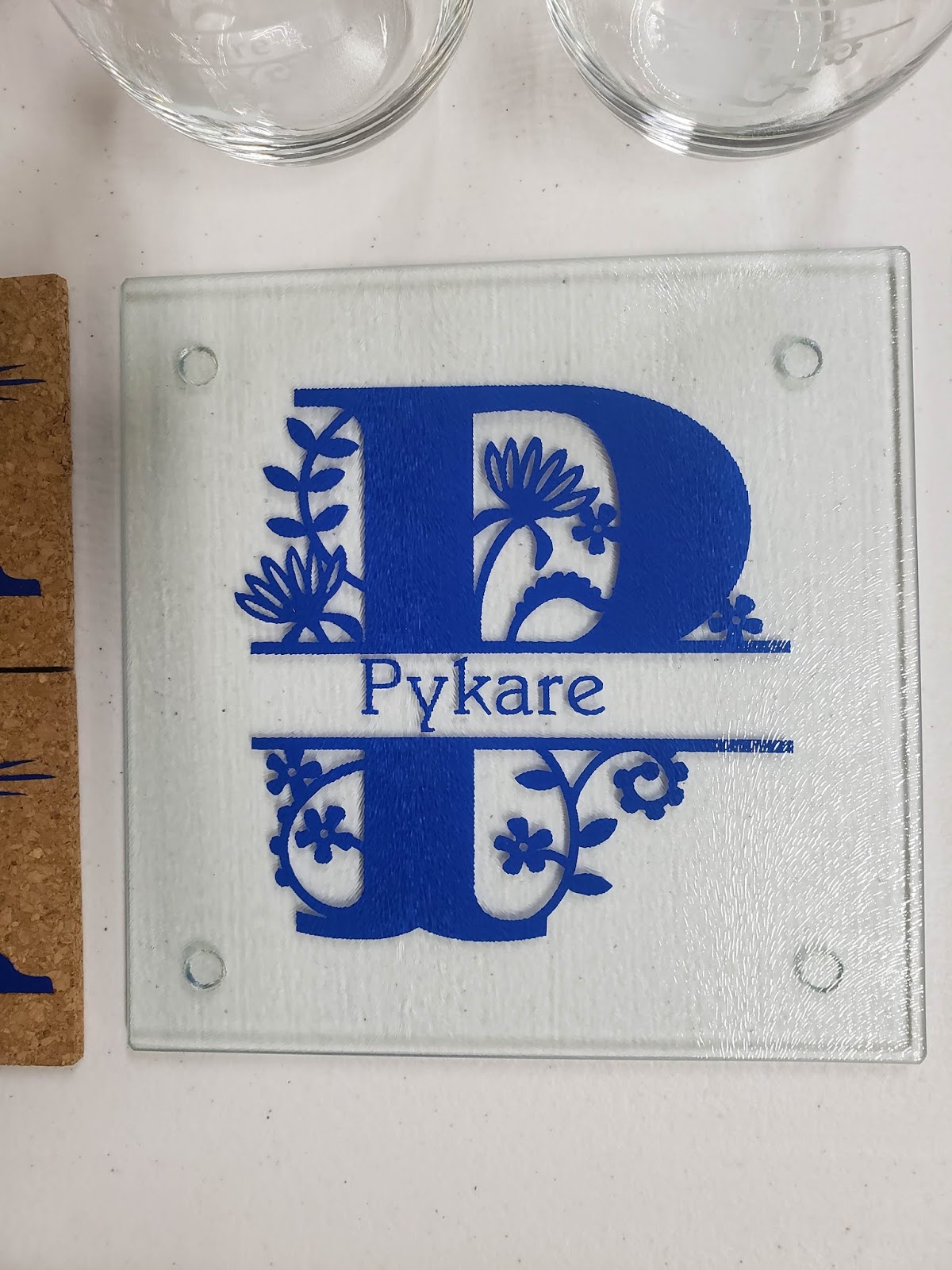
That being said there are other options as well. I have also used just regular cork coasters (those require HTV) I have also use slate coasters that I bought at Michael’s. So you can buy new or if you already have some and what to give them a fresh look. You have plenty of options.

Vinyl: Like I mentioned before for these coasters from dollar tree I just used regular permanent vinyl.

Transfer Tape: Naturally you don’t want to use a strong grip transfer tape. My personal favorite transfer tape is the Paper Studio Transfer Tape you can buy at Hobby Lobby.

How-To:
1. After you collect your materials you want to get on design space and create your design. Right now I’m going crazy over these split monograms that are part of the image library. Before you move to on make sure that everything is attached if you are using all one color.

2. Make sure that your image is within the dimension size and duplicate the design for how many coasters that you are making.

3. Cut out the design.
4. Weed out the extra vinyl
5. Apply the transfer tape to the image.
6. Carefully apply it to the coaster.

7. Repeat to the other coasters and enjoy!

Remember that the permanent vinyl takes 24-48 hours for the adhesive to cure. That being said I suggest not using these for 2 days. After that, that’s pretty much it. I have been using the ones that I’ve made for several months and they are still perfect. When their dirty you can just spray them with clean and then you’re all good. Until next time, stay craftalicious everyone!
Uncategorized

Custom Cutting Board – Great Housewarming Gift

Hello everyone! I wanted to share with you today a gift that is easy to do and makes a fantastic addition to a housewarming gift and/or wedding present. It is these custom cutting boards. The things needed for this project are: 
  • Cutting Board
  • Vinyl
  • Transfer Tape
  • Squeegee or card
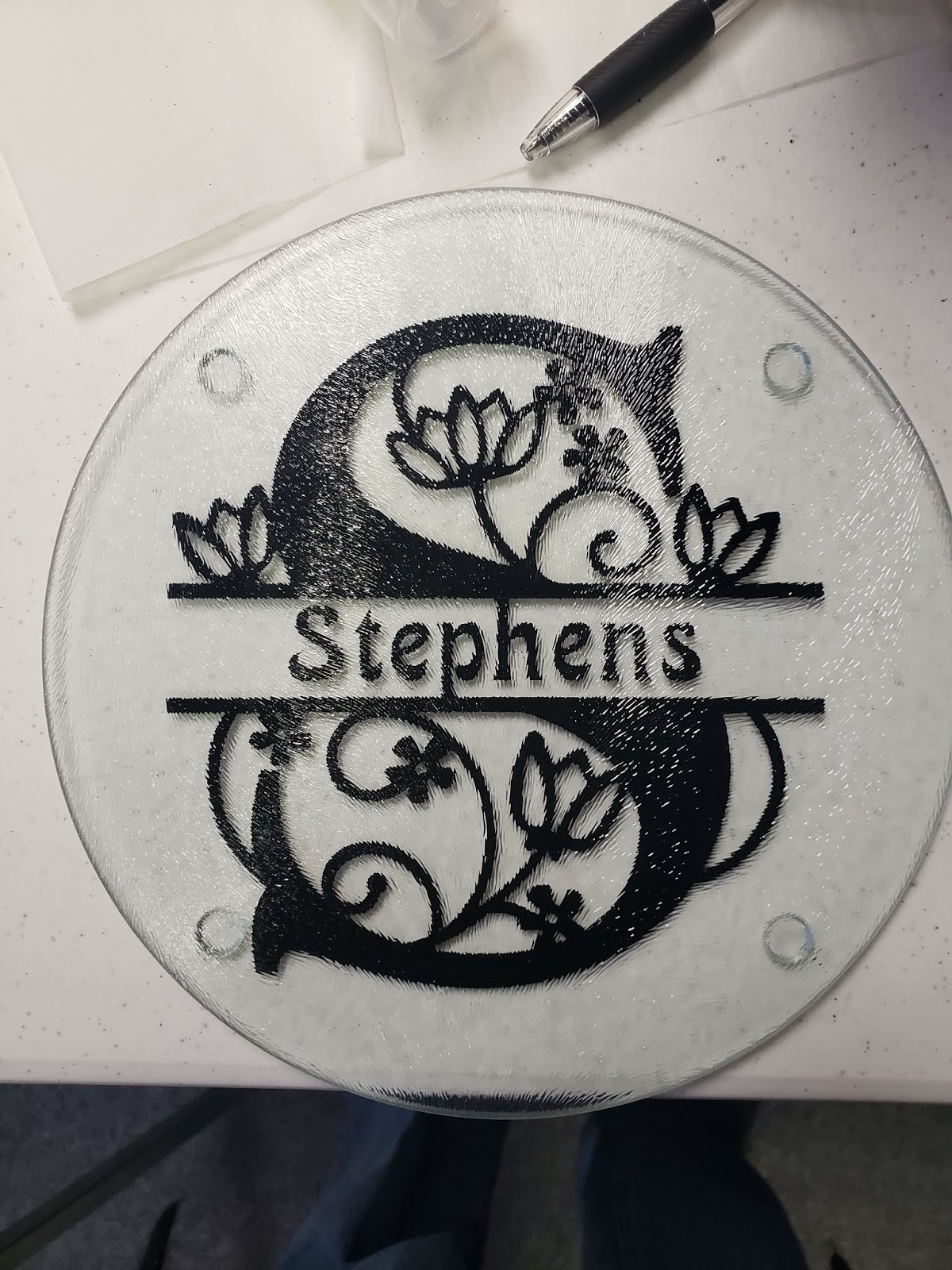
The best part about it is that you can pay as much or as little as you want. The cutting boards that are below I got from the dollar tree. They would be perfect for a cheese cutting board. If you wanted to do something bigger or a full-sized one, you can find those at any bigger store.

How to Create These Beautiful Cutting Boards:

  1. Design your image on Design Space — Personally, I love split monograms. You can find these images on Design Space under Cartridges → Split Monograms
  2. Use your Cricut or cutting machine to cut out your vinyl — You can do this as big or as small as your cutting board will allow. You have to make sure to MIRROR YOUR IMAGE. For your vinyl, I recommend Oracle 651 since it has a permanent adhesive and the color goes all the way through.
  3. Weed out the extra and apply the transfer tape.
  4. Clean the bottom of the cutting board with rubbing alcohol – This is important because if there is any fingerprints or anything on it, the vinyl may not stick all the way.
  5. Carefully apply the decal to the bottom — You want to do this slowly using your squeegee. This will help prevent bubbles in the vinyl.
  6. Voila! You’re done!

Because, the vinyl is applied to the bottom they can still use the cutting board and they look beautiful! I made these for a total of $3! How amazing of a deal is that!?! That wraps it up for today, talk to you next time!

Uncategorized

Cricut Commands: Flatten, Attach, Weld, Slice

Hi guys!

Today I am so excited to be sharing with you this little mini tutorial the commands for Design Space. When you are new to the Cricut world, learning the software can be the most difficult part. However, after today you will learn how to manipulate images as you wish. Without further ado let’s get started.

Flatten: Have you saw the flatten button on your toolbar but didn’t know what it was for? You’ll have to wonder no more. When you flatten an image, you are taking multiple layers and converting it to a single image. This is used if you want to do a print and cut. This makes life so much easier when you are making decals, stickers, ect. This will give you the different colors that you would like without it cutting out every since piece by color. Recently I used this on printable vinyl to make a sticker for a cup that I was epoxying. It worked like a charm!

Attach: When you attach something you are combining different layers. They will stay in their relative positions and move a group. If you resize, then it will resize evenly as one piece though there may be different elements. You may wonder then how this is different from a group. When you group things together it will do the same thing. The difference comes when you send your project to the mat. If it is attached it will stay exactly as you have it. However, if it is set to group, the software will rearrange it on the mat to save space. If you want to have one piece cut exactly as you have it then attach is your tool. If you want to change something you can always tap the button again to unattach it.

Weld: Weld will take and merge together two objects where they overlap. An important thing about welding is there is no undo button. You can only undo it if you tap the “Undo” button right after doing it. If you decide later down the line that you want to do something different it will be too late. I love to use the weld tool when using a script font. A lot of times even after adjusting the letter spacing the word doesn’t look right. I can then ungroup the words fix the ones I need to then weld the word back together. This way the overlapping part of the letter will not be cut out of the next one.

Slice: Lastly, we are going to talk about slicing. This is probably the tool that I use most often. There is so much that you can use it for. If you want to cut text out of a shape, you use the slice, if you want to cut one shape out of another, you slice. The slice option will only appear after you select 2 layers. Please note that you can only slice 2 layers at a time. You can select 2 layers either by dragging a box over the two layers or selecting one layer holding the ctrl key on your keyboard then selecting the other layer.

Well, that wraps it up for today! Thank you for taking the time to give this a read through. If you have any questions please don’t hesitate to comment down below. Until next time have a craftabulous day!

Uncategorized

Downloading Free Fonts for Design Space – Windows 10

Have you seen all of these beautiful fonts on various projects but when you go into Design Space you are disappointed because you have to pay to use different fonts? You will no longer have to worry about that with this easy tutorial. Please note that this tutorial is for Windows 10.

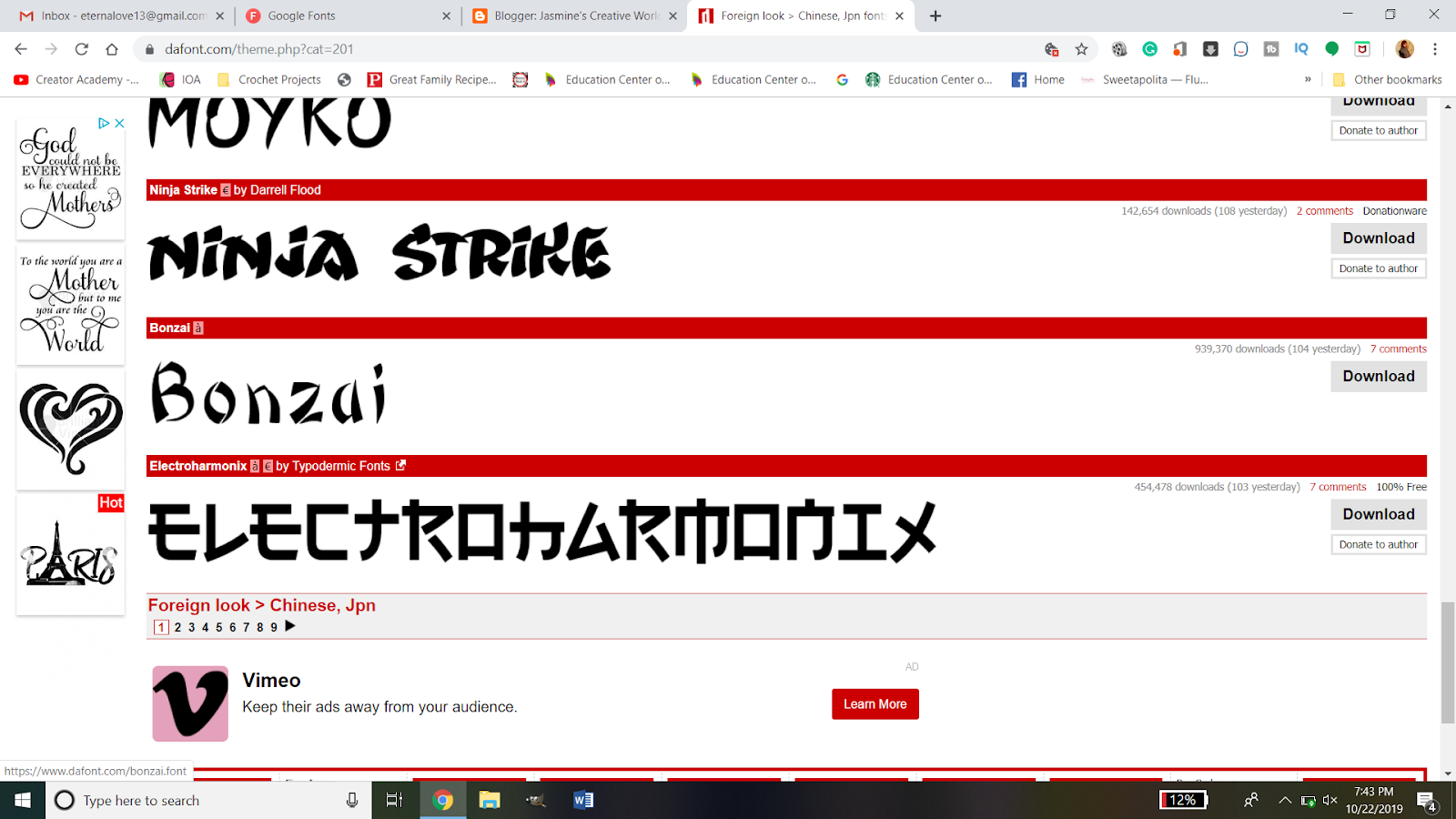
So first you need to find some free fonts. There are many ways that you can go about doing this. Personally, I always use dafont.com but there are many other websites out there. Some other websites are:

If you would like a full list then you can go to your favorite search engine and just type in free fonts or free font websites. As mentioned I love dafont.com so I’m going to be using that for this tutorial. So after you get to the main page you want to find what kind of font you are looking for. If you are going to use the font and sell products then you need to make sure that it has a free commercial license included.

For this example, I am going to use the Bonzai font. You need to download the file. On this website, you can see it on the right side of the screen.
Once it is downloaded then you need to find the file on your computer. It will come as a zipped file. To be able to use it, right-click on the folder then click extract all.
When the dialogue box pops up, make sure the file is going to be where you want it to go and click extract.
When the file is done being extracted then it will open a new window with the extracted folder. You then want to right-click on the font file and click “Install for all users”. You will then see a status bar go across until it is completed. If the font you pick has more than one font file you will need to do this step for every file.
Now your font is installed and ready to use. If you already have design space open you will need to save your progress and close the window. Then reopen it. This will refresh the fonts.
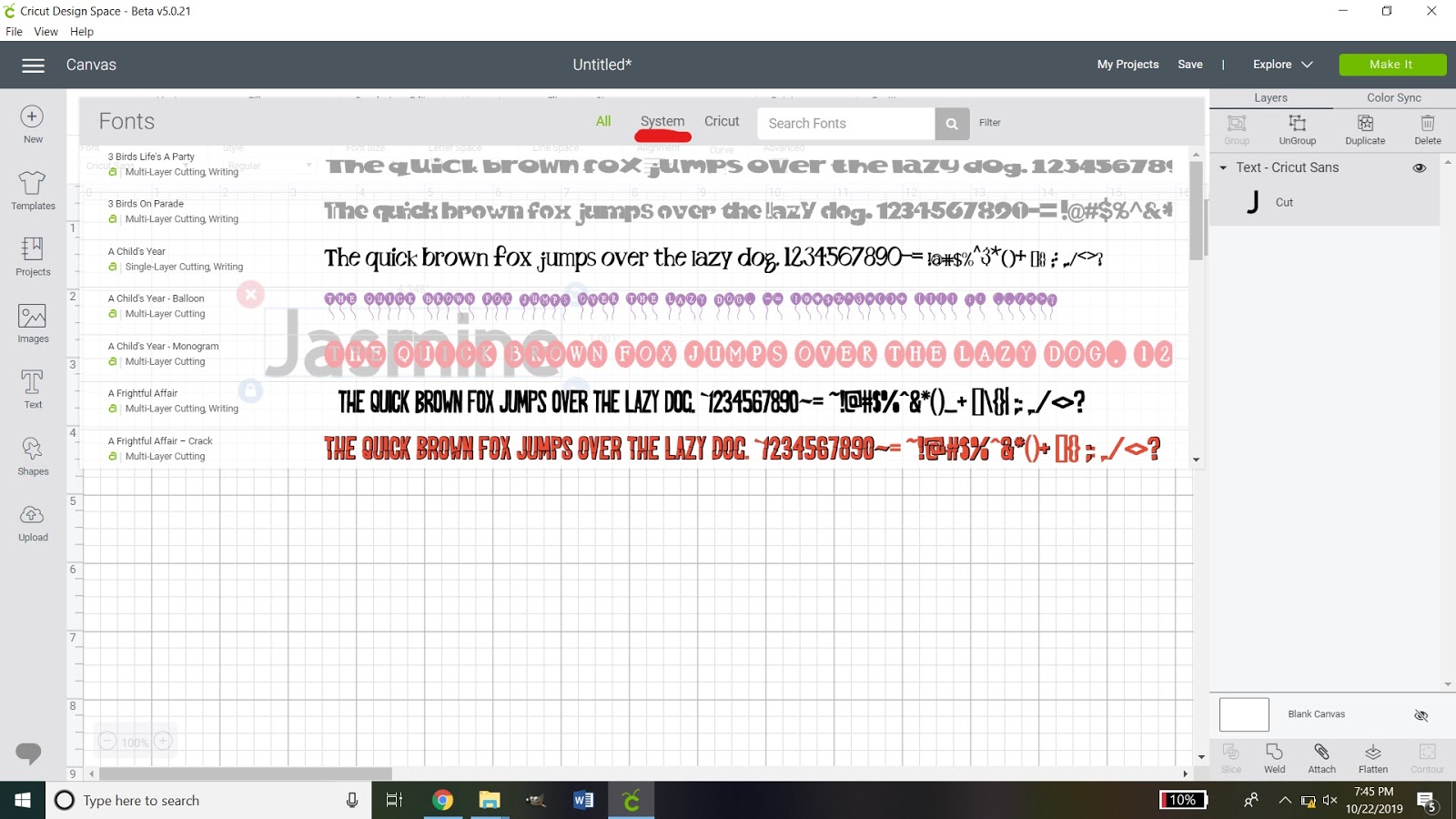
When you open your fonts you want to click the systems tab. This will open the fonts that are installed on your computer.
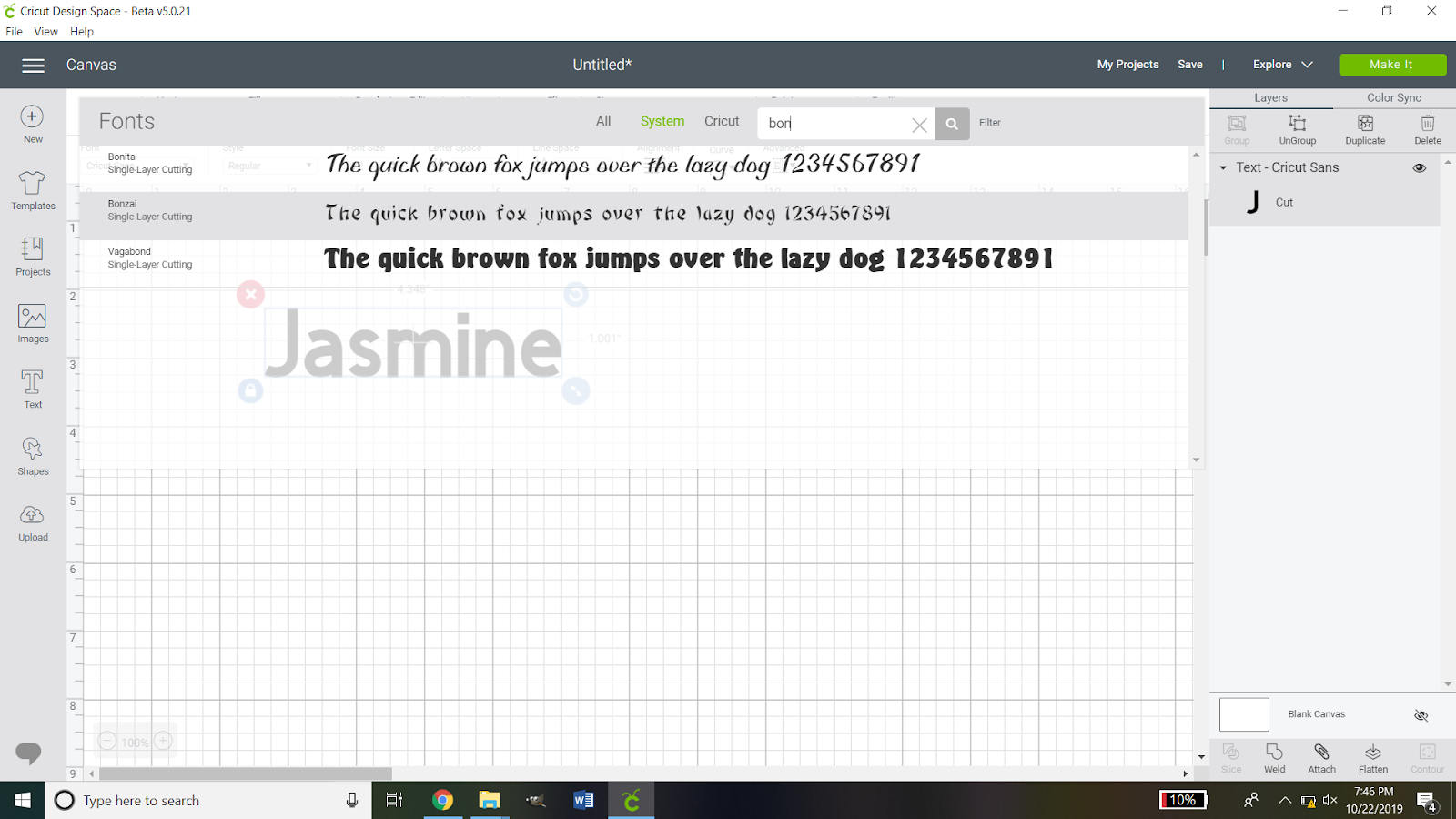
If you do not want to look through the list for it then you can type the name of the font into the search and click on it.
That’s all there is to it!
I hope that this tutorial was able to help you. If you would like a tutorial on how to install custom fonts on your android device then please leave a comment below and I’d be happy to make another tutorial. Until next time, have a craftabulous day!
Uncategorized

Gifts for National Boss Day?

Tomorrow is National Boss Day. Are you stumped on what you can make to show your boss some appreciation? Today I am going to show you an inexpensive gift that you can make for your boss. If you know that they like coffee or cold beverages then you can make them this awesome cup. I have two different versions that you can use.

Click the link above to be taken where you can download them. In order for this work properly, you will need to make sure that it is 3.944W X 3.75H. If you choose to, you can add your boss’ name and slice it out.
***~~~ You can use my designs for personal use. Any commercial use MUST include a link back to my blog. ~~~***
That’s all for today folks! Talk to you soon!