Have you seen all of these beautiful fonts on various projects but when you go into Design Space you are disappointed because you have to pay to use different fonts? You will no longer have to worry about that with this easy tutorial. Please note that this tutorial is for Windows 10.
So first you need to find some free fonts. There are many ways that you can go about doing this. Personally, I always use dafont.com but there are many other websites out there. Some other websites are:
If you would like a full list then you can go to your favorite search engine and just type in free fonts or free font websites. As mentioned I love dafont.com so I’m going to be using that for this tutorial. So after you get to the main page you want to find what kind of font you are looking for. If you are going to use the font and sell products then you need to make sure that it has a free commercial license included.
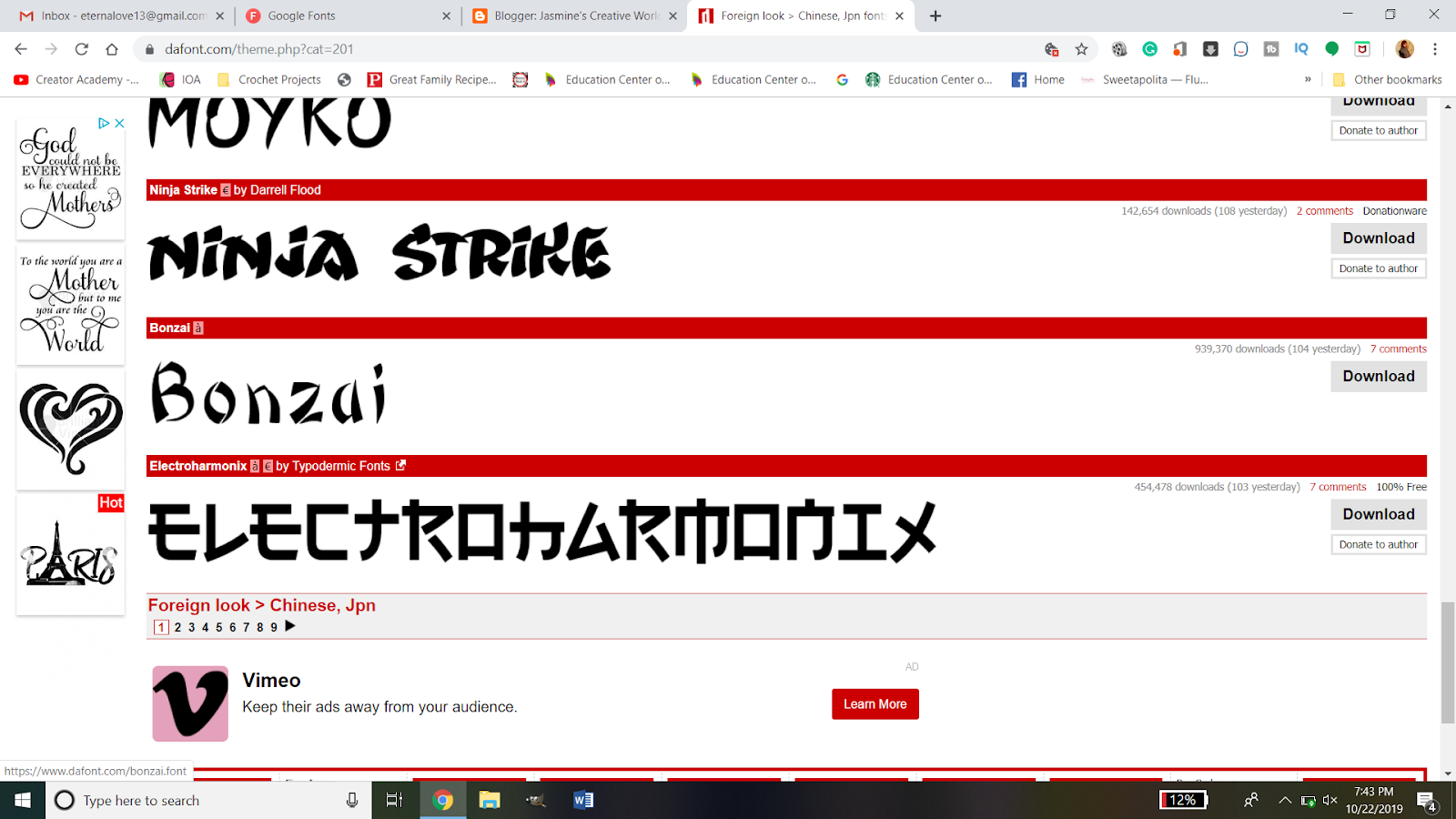
For this example, I am going to use the Bonzai font. You need to download the file. On this website, you can see it on the right side of the screen.
Once it is downloaded then you need to find the file on your computer. It will come as a zipped file. To be able to use it, right-click on the folder then click extract all.
When the dialogue box pops up, make sure the file is going to be where you want it to go and click extract.
When the file is done being extracted then it will open a new window with the extracted folder. You then want to right-click on the font file and click “Install for all users”. You will then see a status bar go across until it is completed. If the font you pick has more than one font file you will need to do this step for every file.
Now your font is installed and ready to use. If you already have design space open you will need to save your progress and close the window. Then reopen it. This will refresh the fonts.
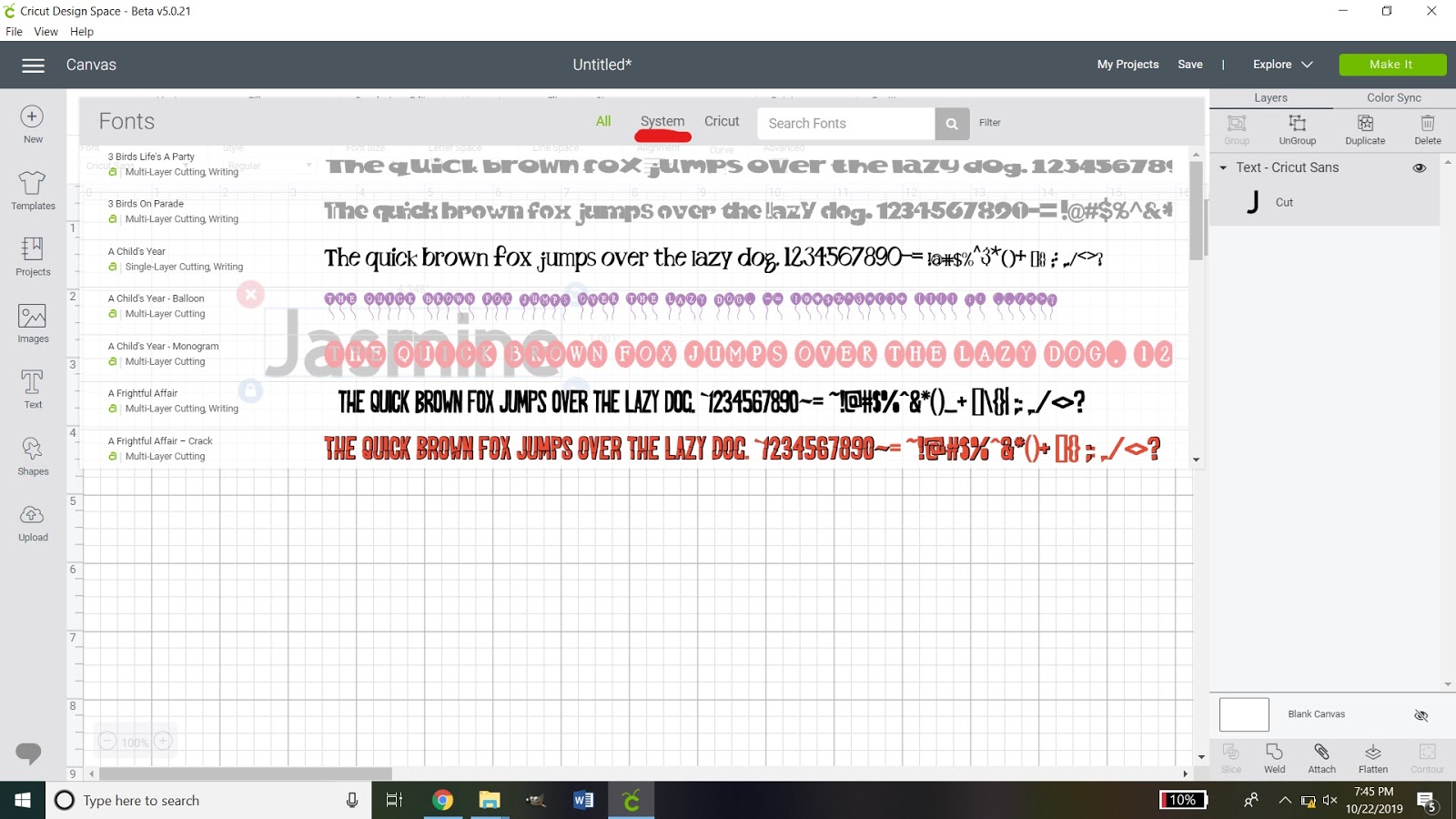
When you open your fonts you want to click the systems tab. This will open the fonts that are installed on your computer.
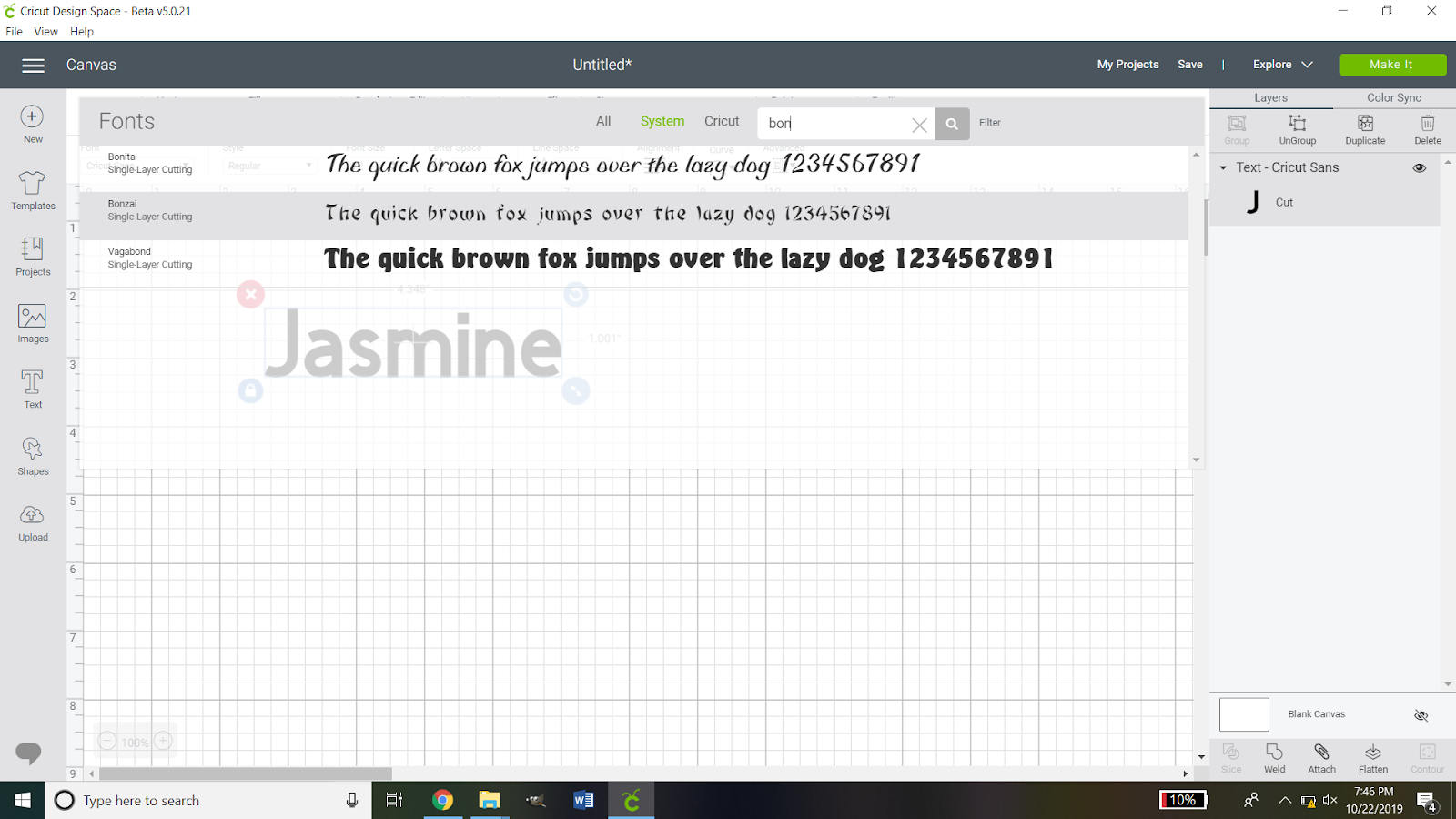
If you do not want to look through the list for it then you can type the name of the font into the search and click on it.
That’s all there is to it!
I hope that this tutorial was able to help you. If you would like a tutorial on how to install custom fonts on your android device then please leave a comment below and I’d be happy to make another tutorial. Until next time, have a craftabulous day!




 Cats MeWOW Designs